Laptop Connects to WiFi But No Internet: Find the Cause, Then Fix It
Last updated: July 31, 2026
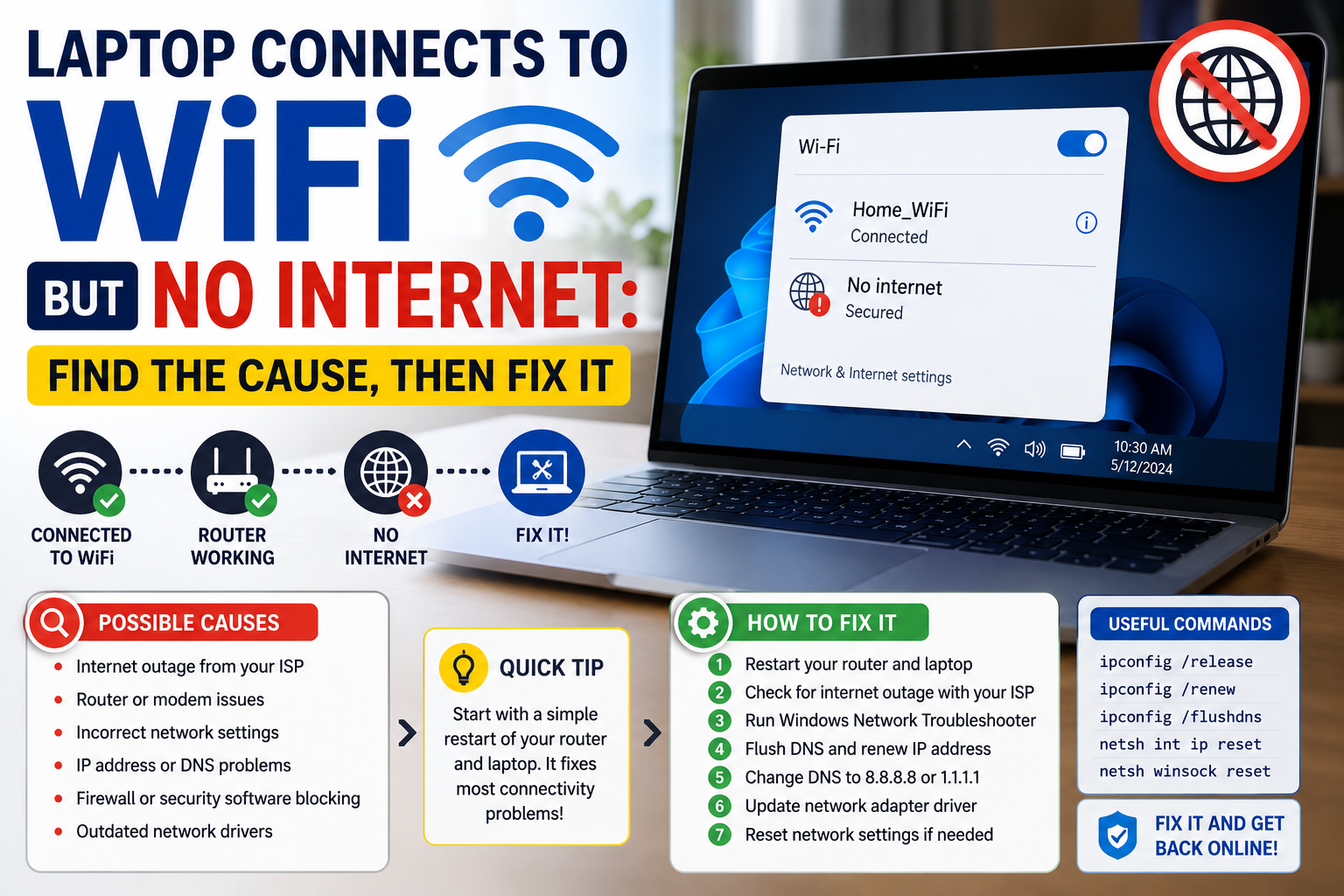
When your laptop connects to WiFi but no internet loads, the connection is breaking at one of four specific points: your network adapter, your DNS, your router, or your ISP. Most guides hand you nine fixes and let you try them all. That wastes time, and a network reset often listed third or fourth can remove your VPN client and Hyper-V switches for a problem that was actually your ISP’s DNS server.
Run the 60-second diagnostic below first. Three commands tell you exactly where the break is, and each result points to one specific fix rather than nine.
The 60-Second Diagnostic
Open Command Prompt (press Windows key, type cmd, press Enter) and run these three commands in order.
Test 1: Can you reach the internet at all?
ping 8.8.8.8
This pings Google’s DNS server by IP address, skipping DNS entirely.
- Replies come back → your internet connection works. The problem is almost certainly DNS. Skip to Fix B.
- “Request timed out” or “Destination host unreachable” → the break is before the internet. Continue to Test 2.
Test 2: Can you reach your router?
ipconfig
Look for Default Gateway under your WiFi adapter usually something like 192.168.1.1. Ping it:
ping 192.168.1.1
(Substitute your actual gateway address.)
- Replies come back → your laptop reaches the router fine. The break is between your router and the internet. Skip to Fix D.
- No replies → your laptop is not properly on the network despite showing connected. Continue to Test 3.
Test 3: Do you have a valid IP address?
In the same ipconfig output, check your IPv4 Address.
- Starts with 169.254 → this is the giveaway. Your laptop failed to get an address from the router and assigned itself a placeholder. Go to Fix A.
- Starts with 192.168 or 10. → you have a valid address but cannot reach the gateway. Go to Fix C.
What your result means
| Test result | Where the break is | Go to |
| ping 8.8.8.8 works, websites don’t | DNS | Fix B |
| IP starts with 169.254 | DHCP / adapter | Fix A |
| Valid IP, gateway unreachable | Network stack or driver | Fix C |
| Gateway reachable, internet not | Router or ISP | Fix D |
Fix A: You Have a 169.254 Address (DHCP Failed)
A 169.254.x.x address means Windows asked the router for an IP and got no answer, so it made one up. Nothing will work with this address.
Renew the address. In an elevated Command Prompt:
ipconfig /release
ipconfig /renew
Check ipconfig again. If you now have a 192.168.x.x address, you are done.
If it fails again, the cause is usually one of these:
- Router DHCP pool is full. Restart the router unplug for 30 seconds. This clears stale leases from devices no longer connected.
- A static IP is set on your adapter. Go to Settings → Network & Internet → WiFi → your network → IP assignment. If it says Manual, switch it to Automatic (DHCP).
- The adapter is in a bad state after an update. See Fix C.
Fix B: Internet Works But Websites Don’t (DNS Problem)
If ping 8.8.8.8 succeeded but ping google.com failed, your connection is fine and DNS is the problem. This is one of the most common causes and one of the fastest to fix.
Step 1 flush the DNS cache:
ipconfig /flushdns
Test a website. If it works, you had stale cached entries.
Step 2 switch to a public DNS server. Your ISP’s DNS may be slow, overloaded, or down:
- Settings → Network & Internet → WiFi → click your network name
- Find DNS server assignment → click Edit
- Change Automatic (DHCP) to Manual
- Turn on IPv4 and enter:
- Preferred DNS: 1.1.1.1 (Cloudflare) or 8.8.8.8 (Google)
- Alternate DNS: 1.0.0.1 (Cloudflare) or 8.8.4.4 (Google)
- Click Save
If the internet returns immediately, your ISP’s DNS was the culprit. You can leave this setting in place permanently it is often faster than the default anyway.
Fix C: Valid IP But Nothing Reaches the Router
This usually means the network stack or the adapter driver is in a broken state frequently after a Windows update reshuffles network components.
Step 1 reset the network stack. In an elevated Command Prompt, run these in order, then restart:
netsh winsock reset
netsh int ip reset
ipconfig /flushdns
A restart is required for these to take effect. This resets socket configuration and the TCP/IP stack, and it resolves a large share of post-update cases.
Step 2 check the adapter driver. Right-click Start → Device Manager → expand Network adapters → right-click your WiFi adapter:
- Try Update driver → Search automatically first
- If that changes nothing, try Disable device, wait ten seconds, then Enable device
- As a stronger step, Uninstall device, then restart Windows reinstalls the driver automatically on boot
Step 3 check the power-saving setting. This one is easy to miss and causes intermittent failures. In Device Manager, right-click your WiFi adapter → Properties → Power Management tab → uncheck Allow the computer to turn off this device to save power.
Fix D: Your Laptop Is Fine Check the Router and ISP
If you can ping your gateway but not 8.8.8.8, your laptop has done its job. The problem is upstream.
Check another device first. If your phone on the same WiFi also has no internet, stop troubleshooting the laptop entirely it is the router or the ISP.
Restart the router properly. Unplug the power cable, wait a full 30 seconds, plug it back in, and wait 2–3 minutes for it to fully come up. The wait matters; a quick off-on does not clear the state.
If you have a separate modem, restart the modem first, wait until its lights stabilise, then restart the router.
If only the laptop is affected but the gateway pings, check whether the network is set as metered (Settings → Network & Internet → WiFi → your network → Metered connection). A metered connection can block background services in ways that look like an outage.
Still nothing? Check your ISP’s status page or app for a reported outage before spending another hour on settings.
Fix E: It Broke Right After a Windows Update
This deserves its own section, because the fix is different and because it is common enough that it is worth ruling in or out early.
Windows updates periodically reshuffle network components, and several 2026 updates caused connectivity regressions. One documented case involved a February 2026 security update where a user’s WiFi failed with a DHCP error immediately after installing, while other devices on the same network worked normally.
If your connection broke immediately after an update:
- Run Fix C first the winsock and TCP/IP reset resolves most post-update cases
- Update or roll back the network driver in Device Manager. After an update, the OEM driver Windows installs is not always the right one for your hardware
- Check Microsoft’s Windows release health dashboard before troubleshooting further. If it is a confirmed known issue, Microsoft usually ships a mitigation and waiting is the correct move
- Uninstall the update only as a last resort and pause updates afterwards, because Windows will reinstall a mandatory update automatically and reintroduce the problem
One specific 2026 change worth knowing about: the July 14, 2026 update (KB5101650) introduced a security hardening change enforcing TDI transport registration requirements. Applications using sockets over unregistered third-party TDI transports may stop working after installing it. If your internet works in a browser but a specific VPN or security tool broke, this may be why and the fix is a vendor update, not a Windows setting. (→ internal link: Windows 11 Update Stuck at 100%: How to Fix It Without Losing Data)
Last Resort: Network Reset
Try this only after everything above. A full network reset removes and reinstalls every network adapter and restores all networking settings to default.
Settings → Network & Internet → Advanced network settings → Network reset
What it will cost you:
- All saved WiFi passwords are erased you will re-enter them
- VPN client software often needs reinstalling
- Hyper-V virtual switches are removed and must be recreated
- Any custom network configuration is gone
This is why the diagnostic at the top matters. If your problem was ISP DNS, a network reset destroys your VPN setup and fixes nothing.
Frequently Asked Questions
Why does my laptop connect to WiFi but no internet loads? Your laptop reached the router successfully, but something between the router and the wider internet is not working. The four common causes are a DNS failure, a DHCP address failure, a corrupted network stack after an update, or a router or ISP outage. Running ping 8.8.8.8 and checking your IP address identifies which one in under a minute.
What does “No internet, secured” mean in Windows 11? It means you authenticated with the WiFi network successfully the password was correct and the connection is encrypted but Windows cannot reach the internet through it. It is a connectivity problem, not a password problem.
What does an IP address starting with 169.254 mean? Your laptop asked the router for an IP address, received no response, and assigned itself a placeholder. Nothing will work until you get a real address. Run ipconfig /release then ipconfig /renew, and restart the router if that fails.
Is it safe to change my DNS to 8.8.8.8 or 1.1.1.1? Yes. These are public DNS services from Google and Cloudflare. Changing DNS only affects how domain names are translated to addresses it does not change your connection, your ISP, or your security. Many people leave it changed permanently because it is often faster.
Why did my internet stop working after a Windows update? Updates can reset or replace network components and drivers. Running netsh winsock reset, netsh int ip reset, and restarting resolves most cases. If a specific application broke rather than all browsing, check whether that vendor has shipped an update.
Will a network reset delete my files? No. It only affects network settings and adapters. Your files are untouched. However, it does erase saved WiFi passwords and can break VPN clients and virtual switches, so it should be a last resort.
Should I use 2.4GHz or 5GHz? 5GHz is faster but has shorter range and struggles through walls. 2.4GHz is slower but more reliable at distance. If your connection drops when you move away from the router, try switching to 2.4GHz. This affects speed and stability rather than the “connected but no internet” state specifically.
How do I know if the problem is my ISP? Check another device on the same network. If your phone also has no internet over WiFi, the laptop is not the problem. Confirm with your ISP’s status page or app before troubleshooting further. Browse our Networking & Cloud guides)