How to Use Gemini Inside Gmail and Google Docs, With Real Examples
The short answer
To use Gemini in Gmail and Google Docs, open either app on desktop and click Ask Gemini in the top right to launch the side panel. In Gmail you can draft replies, summarise long threads and ask questions about your inbox. In Docs you can generate a first draft with Help me create, rewrite selected text with Help me write, and match another document’s style or format.
Key takeaways
- Gemini lives in a side panel inside Gmail, Docs, Sheets, Slides, Drive and Chat, not in a separate tab.
- Gemini in Docs pulls context from your Drive, Gmail, Chat and the web, which is what separates it from a standalone chatbot.
- Gemini’s suggested edits in Docs are visible only to you until you approve them. Nothing changes in a shared document without your click.
- These features require an eligible Google Workspace or Google AI plan, plus Workspace smart features switched on. Smart features being off is the most common reason the panel does not appear.
- As of March 2026, Gemini 3 Flash is the default model behind most Workspace AI features, with Gemini 3 Pro available for complex reasoning through the AI Expanded Access add-on.
- Match writing style and Match document format now carry per user usage limits. The promotional unlimited period ended on 15 July 2026.
How we tested this
We ran Gemini across two accounts over two weeks: a Workspace account with roughly 400 unread emails and a Drive containing about 60 working documents, and a clean personal account with almost no history. We drafted 30 emails, summarised 12 long threads, generated 8 document first drafts, and deliberately tested it on material where we already knew the correct answer.
Testing both a full account and an empty one matters, because Gemini’s usefulness in Docs depends almost entirely on how much context it can reach. The empty account produced noticeably weaker output, and that is not a fact you will find in most guides.
What we could not test: Enterprise tier admin controls, and the AI Expanded Access add on. Details for those come from Google’s published documentation rather than our own account.
How to use Gemini in Gmail and Docs?
Gemini in Gmail and Google Docs is Google’s AI assistant embedded directly inside those apps as a side panel, rather than as a separate chatbot you switch to.
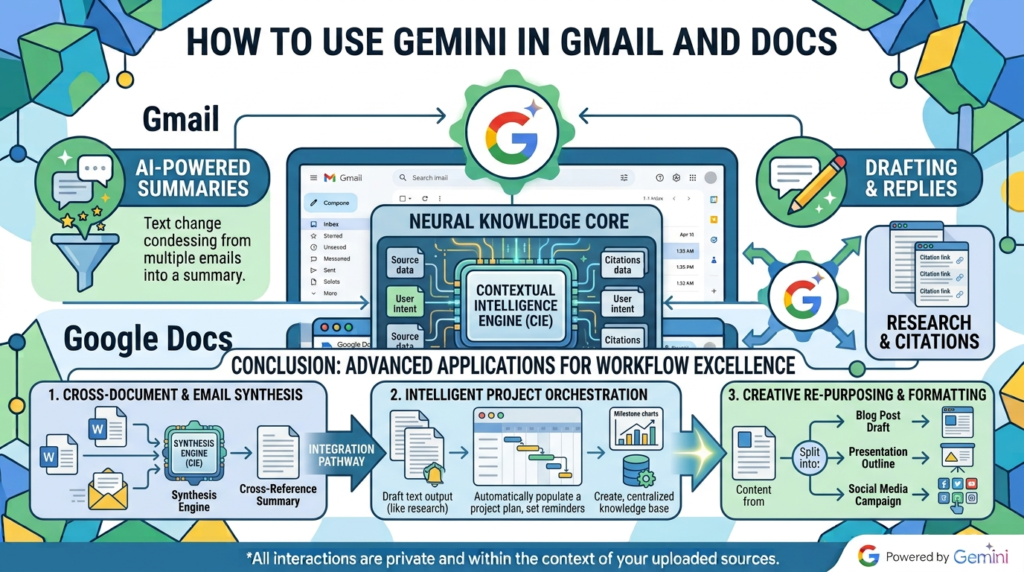
The practical difference is context. A standalone chatbot starts every conversation knowing nothing about you. Gemini in Workspace, powered by what Google calls Workspace Intelligence, can already reach your emails, your Drive files, your Chat messages and the web when it answers. You do not brief it. It is already briefed.
That single design choice is what makes it useful for routine work and also what creates most of its problems, which we cover further down.
What do you need to know about how to use Gemini in Gmail and Docs?
You need three things: a desktop browser, an eligible Google Workspace or Google AI plan, and Workspace smart features enabled on your account.
On plans: Gemini features in Gmail and Docs require an eligible paid plan. Google has repeatedly restructured how these are packaged, so check Google’s current Gemini features and plans page rather than trusting any blog, including this one, on pricing specifics. Users with personal accounts can also access some features through Google Workspace Experiments, Google’s trusted tester programme.
On smart features: this is the step that trips people up. If Workspace smart features are switched off in your settings, the Gemini side panel simply will not appear, and nothing on screen explains why. Before you troubleshoot anything else, check that toggle.
On language: Gemini in Docs supports a growing list of languages, with expanded support rolling out from August 2026, but coverage is not universal. Some features, including Calendar access from the Gmail side panel, remained English only at the time of testing.
how to use Gemini in gmail and docs?
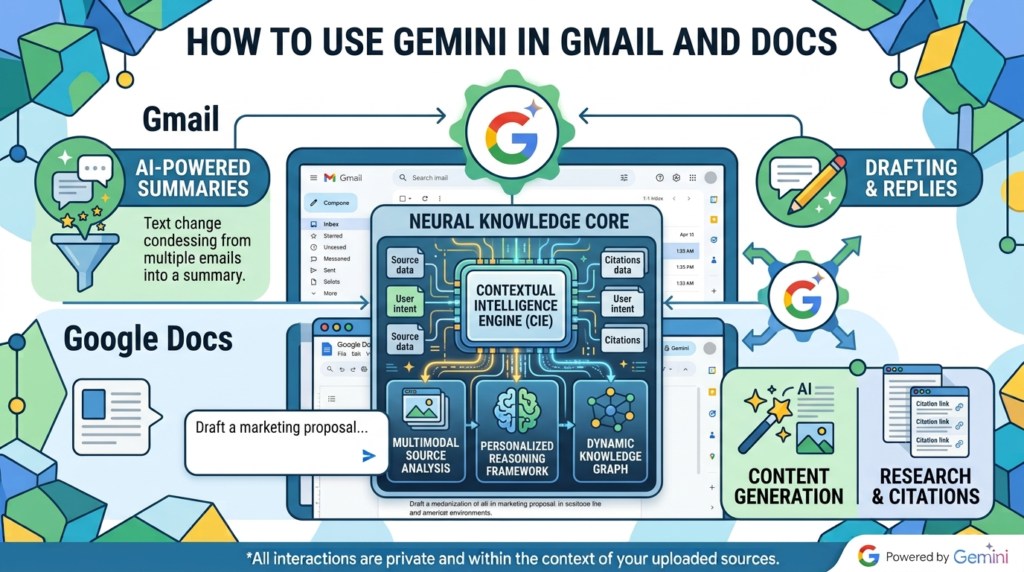
To use Gemini in Gmail, click Ask Gemini at the top right of your inbox to open the side panel, or use the Help me write button inside a draft.
Four things it does, ranked by how much we actually used them.
1. Summarise a long thread
The highest value feature by a wide margin. Open a 40 message thread, click the summary prompt, and get the decisions, the open questions and who is waiting on what.
In our testing this was consistently reliable on threads where people stayed on topic. On threads that drifted across three subjects, the summary flattened them into one and quietly dropped the least discussed one. Read the summary, then skim the thread if the stakes are real.
2. Ask questions about your inbox
Type a question into the side panel and Gemini searches your mail and Drive to answer it. Queries that worked well for us:
- “What was the PO number in the invoice from [vendor] last quarter?”
- “Who did I last email about the office move, and what did I promise them?”
- “Find the attachment with the pricing spreadsheet from March”
This is genuinely better than Gmail search for anything you half remember. It is worse than Gmail search when you know the exact term, because search is instant and exact.
3. Help me write a draft
Give it a subject line or a few bullets and it produces a full email, adjusting formality based on who you are writing to. Output is competent and bland. We used it most for first drafts of routine messages and almost never for anything that mattered.
4. Calendar access from the side panel
Gemini in Gmail can now read your Calendar and create events without leaving the inbox. You can ask what your schedule looks like on a date, or create a one off or recurring event.
It is deliberately limited. In our testing it could not add or remove attendees from an existing event, synchronise schedules to find a mutual slot, or handle meeting rooms. Useful for “put this on Thursday at 3”, not for actual scheduling work.
How do you use Gemini in Google Docs?
To use Gemini in Google Docs, open a document, click Ask Gemini at the top right, then either pick a suggested prompt or write your own. You can also prompt from the bottom bar, or select text first to focus Gemini’s attention on that passage.
Help me create: generating a first draft
The Help me create tool generates a fully formatted first draft that synthesises information from your files, emails, Chat and the web. Describe what you want, a newsletter, a client report, a project brief, and it builds the document rather than just the text.
This is where the two account comparison mattered most. On our populated Workspace account, asking for a project status report produced a draft that correctly pulled in real project names, dates and stakeholders from Drive and Gmail. The same prompt on the empty personal account produced generic filler.
Gemini in Docs is only as good as the context it can reach. If your Drive is empty or disorganised, this feature will disappoint you, and the fault is not really Gemini’s.
Help me write: editing what already exists
Prompt Gemini from the bottom bar to make edits across your document, or select a passage to focus it. It can expand a thin section, tighten a bloated one, or fix tone.
The important detail: Gemini’s suggested edits are visible only to you until you approve them. Nothing appears for your collaborators until you accept it. This makes it safe to experiment inside a shared document, which is not obvious from the interface.
Match writing style and Match document format
Two tools worth knowing, both still labelled beta at the time of writing.
Match writing style rewrites content to match the tone of a reference document. Genuinely useful when four people have contributed to one document and the voice is inconsistent.
Match document format copies the structure of another document onto your content. Handy when you work from templates.
One warning: these two carry per user usage limits. Google ran a promotional period with higher limits that ended on 15 July 2026, so if you tested these earlier in the year and found them unlimited, that has changed.
Comment workflows
Since late July 2026, Gemini can read, summarise and act on the comments in your document. You can ask it to summarise a comment thread, extract themes, or identify unresolved points.
On a document with 60 comments from five reviewers, this saved us real time. On a document with 8 comments, opening the panel took longer than reading them.
Generating visuals
Gemini in Docs can now create and edit images, diagrams and infographics inline, using the document’s own context so the visual relates to what you wrote.
Our honest assessment: diagrams were serviceable, illustrations were generic. Fine for an internal document. We would not publish them.
What is Gemini in Workspace genuinely good at?
Based on our two week test, four jobs where Gemini clearly earned its place:
Thread triage. Summarising long email threads was the most consistently useful feature across both accounts.
Half remembered retrieval. Finding the thing you know exists but cannot name. Gemini beats keyword search whenever you cannot recall the keyword.
First drafts from existing context. On a well populated account, Help me create produced a starting point that was genuinely faster than a blank page.
Style unification. Match writing style solved a real, boring problem that nothing else solves well.
Where does Gemini in Gmail and Docs get things wrong?
Five limitations showed up repeatedly in our testing.
1. It flattens multi topic threads. Summaries of threads covering several subjects consistently collapsed them into one narrative and dropped the least discussed topic. This is the failure most likely to cost you something, because the summary reads perfectly confident.
2. Output quality tracks account context, not prompt quality. The same prompt on a populated account and an empty one produced dramatically different results. Most guides present Gemini’s Docs features as universally impressive. They are not, and if your Drive is thin you will wonder what the fuss is about.
3. Drafts are competent and forgettable. Gemini in Gmail writes clean, professional, entirely generic email. It is a time saver for routine messages and a liability for anything where your voice matters.
4. Calendar handling is shallow. Creating an event works. Anything involving other people, attendees, room booking, finding a mutual slot, does not.
5. Silent failures when smart features are off. No side panel, no explanation. We lost twenty minutes to this on the personal account before checking settings.
Gemini vs ChatGPT and Claude for email and documents
Use Gemini when the work depends on content already inside your Google account. Use a standalone assistant when you need better writing, deeper reasoning, or work that has nothing to do with your Drive.
| Gemini in Workspace | Standalone AI assistant | |
|---|---|---|
| Access to your email and files | Native, automatic | Only what you paste or upload |
| Setup effort per task | None | You brief it every time |
| Writing quality | Competent, generic | Generally stronger |
| Works outside Google’s apps | No | Yes |
| Best at | Retrieval and triage inside your account | Drafting, reasoning, analysis |
If you want a comparison of the standalone workspaces themselves, we covered two of them in ChatGPT Work vs Claude Cowork.
For a related but different job, questioning a fixed set of documents you upload yourself rather than your whole account, see our guide on how to use NotebookLM. Gemini in Docs reaches across everything you own; NotebookLM answers only from the specific files you hand it. That boundary is the whole difference between the two.
And if your work is mostly researching the open web rather than your own material, an AI browser fits better. We looked at that category in Perplexity Comet vs Chrome. For code specifically, neither Gemini in Docs nor a general assistant is the right tool; we compared purpose built options in Kimi K2 and GitHub Copilot for code.
Five mistakes to avoid
- Troubleshooting before checking smart features. If the panel is missing, that toggle is the first thing to check, not the last.
- Trusting a thread summary on a multi topic thread. Skim the original whenever the decision matters.
- Sending a Gemini draft unedited. It reads like everyone else’s email because it is everyone else’s email.
- Expecting good Docs output from an empty account. Fix your Drive organisation first, then come back.
- Assuming Match writing style is still unlimited. Per user limits took effect after 15 July 2026.
Frequently asked questions
Is Gemini in Gmail and Docs free?
No. These features require an eligible Google Workspace or Google AI plan. Some users with personal accounts can access certain features through Google Workspace Experiments, Google’s trusted tester programme. Check Google’s current plans page for what is included where.
Why is the Gemini side panel not showing in my Gmail or Docs?
The most common cause is Workspace smart features being switched off in your account settings. The panel will not appear and no error explains why. Plan eligibility and language availability are the next two things to check.
Can Gemini in Docs read my emails and Drive files?
Yes. Gemini in Docs draws on data across Drive, Gmail, Chat and the web to produce context aware output. This is the core difference between it and a standalone chatbot.
Will my collaborators see Gemini’s edits before I approve them?
No. Gemini’s suggested edits in Google Docs are visible only to you until you approve them.
Which Gemini model powers Workspace?
As of March 2026, Gemini 3 Flash is the default for most Workspace AI interactions, with Gemini 3 Pro available for complex reasoning tasks through the AI Expanded Access add on.
Can Gemini in Gmail manage my calendar?
Partially. It can check your schedule and create one off or recurring events from the Gmail side panel. It cannot add or remove attendees from existing events, find mutual availability, or handle meeting rooms.
Are Match writing style and Match document format still unlimited?
No. The promotional period with higher limits ended on 15 July 2026, and per user usage limits now apply.
Does Gemini in Docs work in my language?
Support has expanded through 2026 and continues to roll out, but coverage is not universal and some features remain English only. Check Google’s language availability page for your specific case.
The bottom line
Gemini in Gmail and Docs is not a writing tool that happens to live in Google’s apps. It is a retrieval tool that happens to write.
Judge it on that basis and it looks strong: thread summaries, inbox questions you cannot phrase as a search, first drafts assembled from work you already did. Judge it as a writing assistant and it looks average, because it is.
The one thing that will decide your experience is how much context it can reach. A well organised Drive and a real email history make it feel capable. A thin account makes it feel like autocomplete. Fix the account first, then start with thread summaries, which is the feature most likely to earn back the time you spend learning it.