Windows 11 Update Stuck at 100%: How to Fix It Without Losing Data
Last updated: July 31, 2026
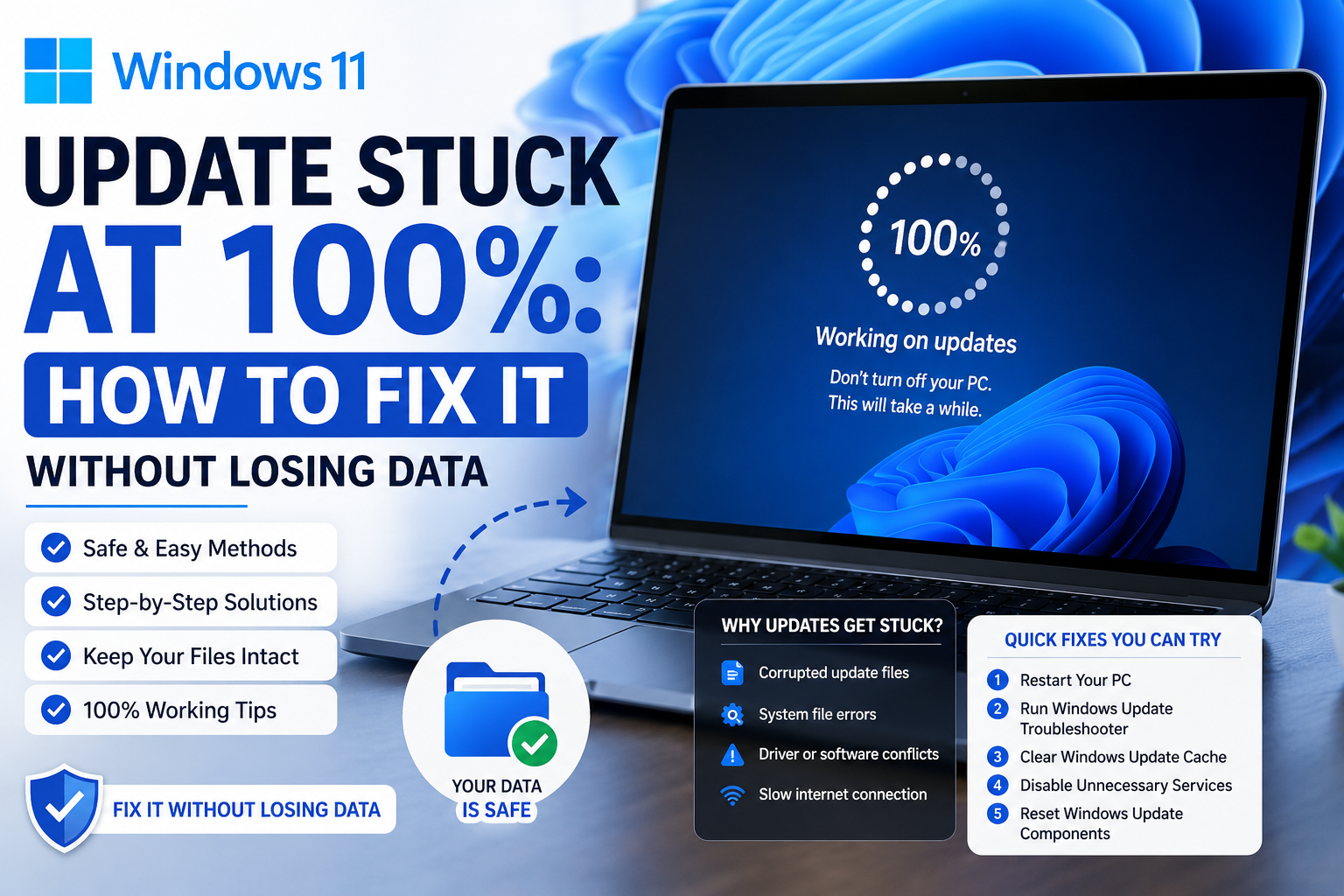
If your Windows 11 update is stuck at 100%, the single most important thing to know is this: in most cases it is not actually stuck, and forcing a shutdown is what causes data loss not the update itself. The progress bar hits 100% when the files are written, but Windows still has to configure components, migrate settings, and update the registry afterwards. That final phase shows no progress indicator at all, which is why it looks frozen when it is working normally.
Wait at least 2 hours before doing anything. On older hardware or a large feature update, 3 to 4 hours is not unusual. Only after that should you start troubleshooting and this guide walks through the fixes in order from safest to most invasive.
Why Does Windows 11 Get Stuck at 100%?
Understanding what is happening makes the waiting easier and the troubleshooting smarter.
The percentage you see measures file installation, not the whole process. Once it reaches 100%, Windows moves into post-installation work: registering components, applying registry changes, migrating your settings and drivers, and cleaning up the previous version. This stage can take longer than the download and installation combined, and Windows deliberately shows no granular progress during it because interrupting is genuinely dangerous.
Common causes when it really is stuck:
- Insufficient space in the EFI system partition a small hidden boot partition. Your main drive can show plenty of free space while this one is full
- Corrupted update files in the download cache
- A conflicting driver or third-party security tool blocking a component
- An upgrade-path issue on PCs that moved from Windows 10 or Windows 11 23H2 to a newer version
- A known Microsoft bug in that specific update this happens more often than people expect
How Long Should You Actually Wait?
This is the question everyone needs answered first, and most guides skip it.
| Situation | Wait before acting |
| Monthly cumulative update, modern SSD | 1–2 hours |
| Monthly cumulative update, HDD or older PC | 2–3 hours |
| Feature update (version upgrade) | 3–4 hours |
| “Undoing changes” message showing | Let it finish completely do not interrupt |
Signs it is still working (keep waiting):
- Hard drive activity light is flickering
- Fan is audibly running or the machine is warm
- The spinning dots are still moving
Signs it may genuinely be frozen:
- No drive activity for over an hour
- The dots have stopped moving entirely
- Machine is cold and silent, well past the wait times above
Critical warning: if you see “Undoing changes please keep your computer on”, Windows is rolling back to your previous state. This is a safe, working process. Interrupting a rollback is one of the most reliable ways to end up with an unbootable system. Let it finish, however long it takes.
Fix 1: Force a Restart Safely (Only After Waiting)
If you have passed the wait times and see no activity, this is the correct order:
- Hold the power button for 10 seconds until the PC powers off completely
- Wait 30 seconds before pressing it again
- Power on and let Windows attempt to continue
Windows is designed to recover from an interrupted update. In most cases it will either resume or roll back automatically on the next boot.
Do this only once. If the same freeze happens again, repeated force-restarts increase the risk of corruption. Move on to the next fixes instead.
Fix 2: Run the Windows Update Troubleshooter
The built-in troubleshooter resolves more update failures than its reputation suggests, and it is completely non-destructive.
- Open Settings → System → Troubleshoot → Other troubleshooters
- Find Windows Update and click Run
- Let it complete, then restart and retry the update
It resets update components, clears stuck services, and repairs common permission problems automatically.
Fix 3: Clear the Windows Update Cache
Corrupted downloaded files are a frequent cause. Clearing the cache forces Windows to download fresh copies.
Open Command Prompt as Administrator and run these in order:
net stop wuauserv
net stop bits
Then navigate to C:\Windows\SoftwareDistribution and delete everything inside the Download folder. You are deleting cached update files, not personal data this is safe.
Then restart the services:
net start wuauserv
net start bits
Restart the PC and check for updates again.
Fix 4: Free Up Space in the EFI Partition
This is the cause most guides miss entirely, and it explains the confusing cases where your drive shows plenty of free space but updates still fail.
Windows uses a small hidden EFI system partition during servicing. On some machines HP laptops have been disproportionately affected this partition runs out of room, and the update fails or rolls back with error 0x800f0922.
Microsoft has published a registry workaround that reduces the reserved padding Windows uses inside this partition during servicing.
Before you touch the registry: back up your PC first. Registry edits can cause irreversible damage if done incorrectly, and this is not a step for casual troubleshooting. If the update has only failed once or twice, restart and retry first Microsoft has already mitigated some of these cases automatically through Known Issue Rollback, so a plain restart genuinely resolves it for many people.
If the update keeps failing after multiple attempts and you are comfortable with the risk, look up Microsoft’s current official guidance for your specific error code rather than following a third-party registry value including one from this article. The correct value has changed between builds.
Fix 5: Remove a Blocking Package (Upgraded PCs)
If your PC was originally on Windows 10 (22H2 or 21H2) or Windows 11 23H2 and was later upgraded, you may hit errors 0x80073712 or 0x800f0993 and once this happens, the device cannot install any monthly updates until it is cleared.
Microsoft’s mitigation is to remove the affected package. In an elevated Command Prompt:
dism /online /remove-package /packagename:Package_for_RollupFix~31bf3856ad364e35~amd64~~26100.1742.1.10
Two important caveats. The package name is build-specific the one above corresponds to a particular build, and yours may differ. Verify the current package name against Microsoft’s own advisory before running it. And if this does not resolve the issue, Microsoft’s recommended next step is a Windows 11 in-place upgrade, covered below.
Fix 6: In-Place Upgrade (Keeps Your Files)
This is the reliable fix when nothing else works, and despite how it sounds, it keeps your files, apps, and settings. It reinstalls Windows over itself, repairing system components.
- Download the Windows 11 Installation Assistant or the ISO from Microsoft’s official site
- Run setup.exe from within Windows not from a boot USB
- When prompted, choose Keep personal files and apps
- Let it complete without interruption
It takes 1–2 hours. Back up important files first anyway “keeps your files” is reliable, not guaranteed, and a backup costs you twenty minutes against the alternative.
Known Windows 11 Update Problems in 2026
Sometimes the problem is not your PC. Several 2026 updates shipped with confirmed issues:
KB5089549 (May 2026) failed to install with error 0x800f0922 on some Windows 11 24H2 and 25H2 devices, linked to the EFI partition space issue. Microsoft mitigated this through Known Issue Rollback for consumer and unmanaged business devices, so restarting and retrying often resolves it. Organisation-managed devices need a Group Policy workaround deployed by an administrator.
KB5094126 (June 2026) Microsoft confirmed a Recycle Bin filename bug and Office application crashes caused by broken OLE integration, affecting apps that call Word, Excel, or PowerPoint programmatically. Independent reports also described boot failures affecting mainly HP business PCs, plus blue screens and BitLocker recovery prompts, which Microsoft had not confirmed at the time of reporting.
KB5101650 (July 14, 2026) introduced a security hardening change enforcing TDI transport registration requirements. Applications using sockets over unregistered third-party TDI transports may stop working after installing it.
If your update fails right after a Patch Tuesday, check Microsoft’s Windows release health dashboard before spending hours troubleshooting. If it is a known issue, the fix is usually to wait for the automatic mitigation rather than to change anything yourself. (→ internal link: Browse our Windows Guides)
How to Avoid Losing Data During a Stuck Update
Prevention matters more than any fix here.
Back up before major updates. File History or OneDrive covers most personal files. For feature updates, a full system image is worth the time.
Never force-shutdown during “Undoing changes.” Worth repeating because it is the most common cause of a recoverable situation becoming an unrecoverable one.
Do not update on low battery. Plug in laptops. A power loss mid-update is functionally identical to a force shutdown.
Disconnect non-essential USB devices before feature updates. External drives and dongles cause a surprising share of update hangs.
Delay optional updates by a week. Optional preview updates are exactly where known issues surface first. Letting others find them costs you nothing. (→ internal link: Browse our PC Troubleshooting guides)
Frequently Asked Questions
How long can a Windows 11 update stay stuck at 100%? On a modern SSD, 1–2 hours is normal for a cumulative update. On older hardware or for a feature update, 3–4 hours is not unusual. The 100% mark only measures file installation component configuration happens afterwards with no progress shown.
Will I lose my files if I force-shutdown during an update? Personal files usually survive because Windows can roll back, but it is a real risk particularly during the registry and component migration phase, or during a rollback. This is the main way a stuck update turns into actual data loss, which is why waiting matters more than any fix.
What does “Undoing changes to your computer” mean? Windows failed to install the update and is reverting to your previous working state. It is safe and working as designed. Do not interrupt it, however long it takes.
Why does my update fail when I have plenty of disk space? Likely the EFI system partition, a small hidden boot partition that is separate from your visible free space. When it fills up, updates fail often with error 0x800f0922 regardless of how empty your main drive is.
Does an in-place upgrade delete my files? No, provided you select “Keep personal files and apps” when prompted. It reinstalls Windows over itself and repairs system files while preserving your data. Back up first regardless.
Is it safe to delete the SoftwareDistribution folder contents? Yes. It contains cached update files, not personal data. Windows recreates them on the next update check. Stop the Windows Update and BITS services first, as shown above.
Should I disable Windows Update to avoid this? No. Security updates patch actively exploited vulnerabilities, and mandatory ones eventually install even when paused. Delaying optional preview updates by a week is a reasonable middle ground; disabling security updates is not. Browse our Security Tips)
How do I check which Windows 11 build I am on? Go to Settings → System → About. Comparing your build number against Microsoft’s release notes tells you whether an update actually installed.