
How to Use NotebookLM to Summarise Your Own Notes and Documents
The short answer
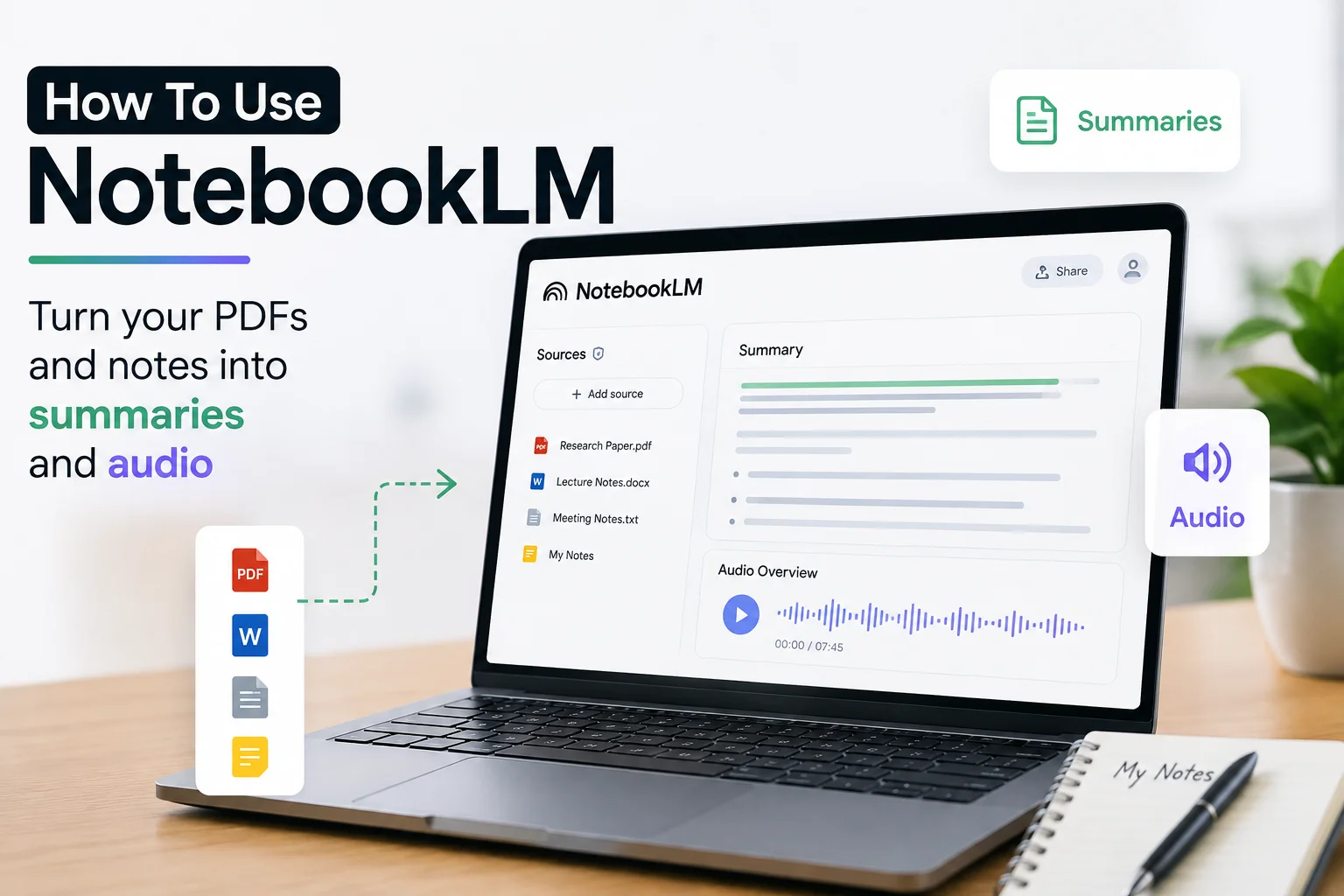
To use NotebookLM, create a new notebook, upload your own PDFs, Google Docs, web links or pasted text as sources, and then ask questions in the chat panel. NotebookLM answers only from the files you uploaded and adds a clickable citation to the exact passage. The same sources can also become a study guide, a briefing document, or an audio overview.
Key takeaways
- NotebookLM answers only from sources you upload. It will not pull in outside knowledge, which is the entire reason to use it.
- Every NotebookLM answer carries a numbered citation that jumps to the exact paragraph in your document.
- The free Standard plan allows 50 sources per notebook and 100 notebooks; paid plans go up to 600 sources per notebook.
- Every plan caps a single source at roughly 500,000 words or 200 MB. Upgrading does not raise this.
- NotebookLM cannot answer across two notebooks. Each notebook is isolated, and a paid plan does not change that.
- Google now documents the product as Gemini Notebook, running on Gemini 3.
How we tested this
We built four notebooks over three weeks: a 22 source research set of PDFs, a 9 source set of client documentation, a set of six lecture recordings, and a deliberately messy 40 source notebook to see where answer quality breaks down. Every claim below comes from that testing. Where we could not test something, we say so.
What we could not test: the Ultra tier’s 600 source ceiling, and Workspace or Education accounts. Quotas for those come from Google’s published documentation rather than our own account.
What is NotebookLM?
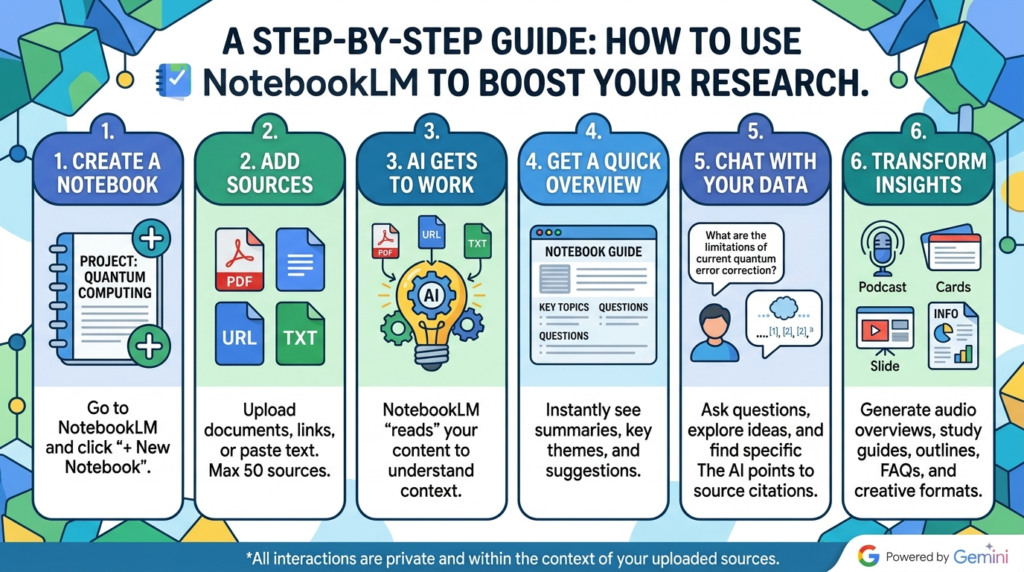
NotebookLM is a Google research and note taking tool that answers questions using only the documents you upload to it. Unlike a general chatbot, NotebookLM does not draw on outside knowledge. Every response is grounded in your uploaded sources and includes a citation pointing to the exact passage it came from.
Google’s own documentation now calls the product Gemini Notebook, and as of mid 2026 it runs on the Gemini 3 model. Most people still search for and say “NotebookLM”, and the interface works identically. If a tutorial uses one name and your screen shows the other, you are in the right place.
This kind of naming and versioning churn is normal in AI tooling. We covered a similar case when OpenAI announced its API shutdown dates, where the version naming caught a lot of developers off guard.
What NotebookLM is not for
NotebookLM is not a general purpose chatbot, a coding assistant, or a search engine.
Ask ChatGPT what the capital of Australia is and it answers. Ask NotebookLM the same question with no relevant document uploaded, and it tells you the sources do not cover it. That constraint is a feature, not a bug, but it means NotebookLM is the wrong tool when you want the model to bring in knowledge from outside your files.
For AI help writing or debugging code specifically, a different category of tool applies. We compared two of those in our piece on Kimi K2 and GitHub Copilot for code.
What do you need before starting NotebookLM?
You need a Google account and a desktop browser. That is the full requirement list.
Google publishes Android, iPhone and iPad apps for NotebookLM, but its own guidance still recommends the desktop version for the complete feature set. In our testing, several Studio outputs were slower or unavailable on mobile.
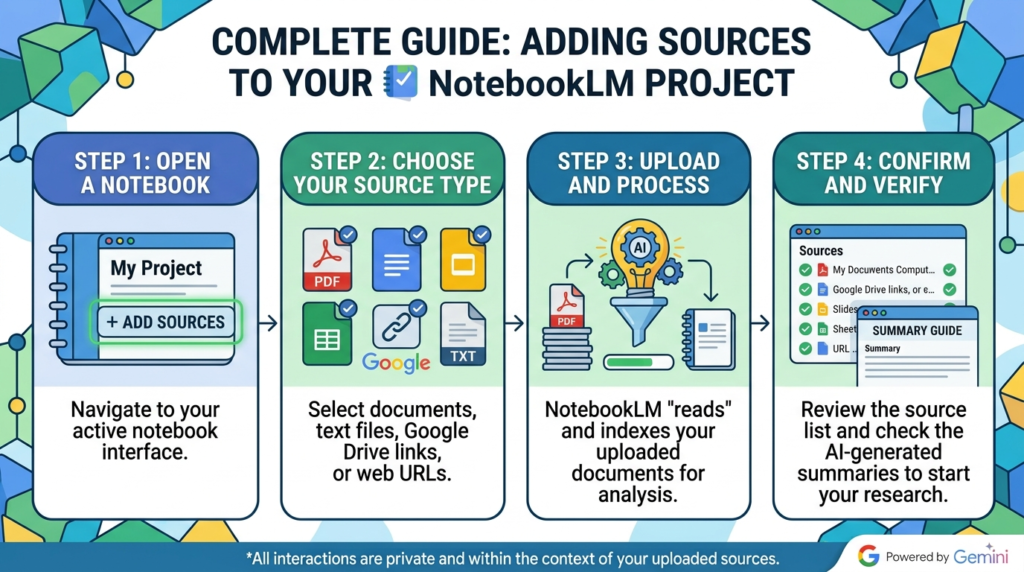
Supported source formats include PDF, Google Docs, Google Slides, plain text, Markdown, web page URLs, YouTube links with captions, and audio files.
One trap worth knowing before you start: copy protected PDFs will not import on any plan. If your PDF carries DRM or copy restrictions, NotebookLM rejects it, and the error message does not always explain why.
Step 1: How do you create a NotebookLM notebook?
To create a NotebookLM notebook, open the app, click Create new, and name it after one bounded topic.
That naming advice sounds trivial and it is the single biggest predictor of whether NotebookLM works for you. Do not create a notebook called “Research”. Create “Q3 Competitor Pricing”, “Thesis Chapter 4 Sources”, or “Client Onboarding Docs”.
The reason is mechanical. NotebookLM retrieves across every source in the notebook at once. In our 40 source messy notebook, answers to specific questions pulled context from unrelated documents and became noticeably vaguer than the same questions asked in the tightly scoped 9 source notebook. Ten related documents beat forty unrelated ones every time.
Step 2: How do you add sources to NotebookLM?
To add sources in NotebookLM, click Add source, then upload files, link Google Drive documents, paste a URL, or paste raw text directly.
Three things we learned in testing:
Every source type shares one quota. A PDF, a YouTube link, a pasted paragraph and a Google Doc each consume one source slot. There is no separate allowance per type.
YouTube imports the transcript, not the video. NotebookLM does not watch video. It requires user uploaded or automatically generated captions, and it does not support private or unlisted videos. Videos without captions fail to import.
Large uploads are genuinely slow. A 200 page scanned PDF is not instant, and on a constrained connection it can stall entirely. If uploads keep timing out, the bottleneck is usually local. We covered the factors affecting large file upload and download speeds separately.
What are the NotebookLM limits by plan?
NotebookLM source limits range from 50 per notebook on the free Standard plan to 600 per notebook on the largest Ultra plan. The table below shows the current consumer quotas.
| Plan | Sources per notebook | Notebooks per user |
|---|---|---|
| Standard (free) | 50 | 100 |
| Plus | 100 | 200 |
| Pro | 300 | 500 |
| Ultra | 500 to 600 | 500 |
Two caps do not change with any upgrade:
- A single source is limited to approximately 500,000 words or 200 MB, with no page limit inside that.
- Copy protected PDFs are rejected on every tier.
The free Standard plan also allows roughly 50 chat messages per day and 3 audio overviews per day.
Source: Google’s supported sources and limits documentation, checked August 2026. Google labels these quotas as subject to change, so verify before planning a large project around them.
Step 3: How do you ask NotebookLM good questions?
To get useful NotebookLM answers, ask extraction and cross referencing questions rather than broad summary requests.
NotebookLM is unusually strong at pulling specific facts across many documents at once, and comparatively ordinary at general summarising. Compare these two prompts:
- Weak: “Summarise this”
- Strong: “List every pricing figure mentioned across these documents, with the source and page for each”
Prompts that performed well in our testing:
- “What do these sources disagree about?”
- “Which claims here have no supporting data behind them?”
- “Build a timeline of every date mentioned, in order”
- “Find every mention of [term] and give me the context each time”
The first prompt is the standout. Pointed at five sources on one topic, NotebookLM produced a usable map of where the authors conflicted in under fifteen seconds, with citations for each side.
Step 4: How do you turn sources into study guides and briefing documents?
In the NotebookLM Studio panel, one click generates a study guide, briefing document, FAQ, timeline, or mind map built entirely from your uploaded sources.
| Studio output | What it produces | Best used for |
|---|---|---|
| Study guide | Key concepts, definitions, review questions | Actual exam study |
| Briefing document | Structured executive summary across all sources | Work handovers, client prep |
| FAQ | Questions your documents implicitly answer | Spotting coverage gaps |
| Timeline | Chronological list of events found in sources | Case histories, project reviews |
| Mind map | Visual tree of how concepts connect | Orienting in unfamiliar material |
The briefing document was the one we reached for most often. For coursework specifically, it pairs well with the workflow we described in how Python automation is redefining computer science assignments.
Step 5: How does the NotebookLM Audio Overview work?
The NotebookLM Audio Overview generates a spoken conversation between two synthetic hosts discussing your uploaded documents. It is not a text to speech reading. It is a back and forth with interruptions and follow up questions, typically running five to twenty minutes depending on how much you uploaded.
Generation takes a few minutes and the file can be downloaded for offline listening. The free plan allows three per day.
Two findings from our testing:
You can steer it. A customise option lets you specify focus or audience. Telling it “explain this for someone with no background in statistics” changed the output substantially in our tests.
It flattens nuance. The hosts sounded confident about points our source documents explicitly hedged on. For absorbing the shape of a document while commuting, excellent. For anything where precision matters, return to the text and the citations.
What is NotebookLM genuinely good at?
NotebookLM outperforms general AI assistants in four specific jobs, based on our testing:
Cross document questions. Fifteen research papers, one question, cited answers. No general chatbot handles this as cleanly.
Verifying a claim. Someone asserts a report says X. Upload the report, ask, and get either the exact paragraph or a flat statement that the sources do not say that.
Onboarding into unfamiliar material. A folder of documentation plus a mind map and a few questions got us oriented in about twenty minutes on material that would otherwise have taken a full day of reading.
Meeting and lecture recordings. Upload the audio, get a transcript, then interrogate the transcript with questions.
Where does NotebookLM still get things wrong?
NotebookLM has five limitations that most tutorials leave out. All five showed up in our testing.
1. Notebooks cannot see each other. Each NotebookLM notebook is a sealed retrieval context. There is no way to ask one question spanning two notebooks, and upgrading your plan does not change this. Your only workaround is duplicating sources, which consumes quota.
2. Tables and charts inside PDFs are unreliable. Text extraction was excellent in our tests. Table extraction was inconsistent. Figures pulled from tables in scanned PDFs came back transposed more than once. If your document’s value sits in its tables, verify every number you use.
3. Exports are incomplete. You can copy notes out, but there is no clean, continuously synchronised export of a full notebook with its sources and citations intact. Treat NotebookLM as a working environment, not an archive, and keep your originals elsewhere.
4. It is confidently vague on thin sources. Two short documents plus a broad question produced fluent output that said very little. Answer quality scales hard with the depth of what you upload.
5. No offline mode, and files leave your device. Every plan processes uploads on Google’s servers. Google states it does not train its models on your uploaded content, but if your material genuinely cannot leave your machine, NotebookLM is not the tool.
NotebookLM vs ChatGPT and Claude: which should you use?
Use NotebookLM when the answer must come from specific documents and you need to prove where it came from. Use a general AI assistant when you want it to draft, argue, write code, or bring in knowledge from beyond your files.
| NotebookLM | General AI assistant | |
|---|---|---|
| Answers from | Only your uploads | Training data plus your uploads |
| Citations | Every answer, clickable | Inconsistent |
| Hallucination risk | Low, bounded by sources | Higher |
| Writing and drafting | Weak | Strong |
| Code | Not designed for it | Strong |
| Cross project memory | None, notebooks isolated | Varies by product |
If you are weighing up AI workspaces for actual work rather than research, we put two of them head to head in ChatGPT Work vs Claude Cowork. And if your real need is researching the open web rather than your own files, a browser based research tool fits better; we looked at that category in Perplexity Comet vs Chrome.
Most people we know who use NotebookLM seriously run all three, for different jobs.
Five NotebookLM mistakes to avoid
- Dumping everything into one notebook. Answer quality drops sharply once sources stop being related to each other.
- Uploading social posts individually. Forty short posts consume forty source slots for very little signal. Batch them into one document first.
- Trusting the Audio Overview for precision. It smooths over hedges and caveats present in the source.
- Skipping the citations. They are the entire reason to use NotebookLM. Click through on anything you plan to rely on.
- Treating NotebookLM as storage. Export options are limited. Keep your original files somewhere else.
Frequently asked questions
Is NotebookLM free? Yes. NotebookLM has a free Standard tier offering 50 sources per notebook, 100 notebooks, roughly 50 chats per day, and 3 audio overviews per day. Paid Plus, Pro and Ultra plans raise those quotas.
Does NotebookLM train Google’s models on my documents? Google states it does not train its models on your uploaded content. Your files are still processed on Google servers rather than locally, and no plan offers an offline mode.
Can NotebookLM read a YouTube video? NotebookLM imports the transcript of public YouTube videos that have user uploaded or automatically generated captions. It does not analyse the video itself, and it does not support private or unlisted videos.
Why does NotebookLM say the sources do not contain that information? Because they genuinely do not. NotebookLM will not answer from general knowledge. If you need outside knowledge, use a general AI assistant instead.
Can I ask a question across two NotebookLM notebooks? No. NotebookLM notebooks are isolated retrieval contexts, and upgrading to a paid plan does not change this.
How many sources can a NotebookLM notebook hold? Between 50 and 600 depending on plan: 50 on Standard, 100 on Plus, 300 on Pro, and 500 to 600 on Ultra tiers.
Does NotebookLM work on mobile? Google publishes Android, iPhone and iPad apps, but some Studio features are limited or missing on mobile. Google recommends desktop for the complete experience.
What is NotebookLM called now? Google’s current documentation uses the name Gemini Notebook. The product is the same, and it now runs on Gemini 3.
The bottom line
NotebookLM is not a better ChatGPT. It is a different tool that answers one question well: what do my documents actually say?
Set up properly, one tightly scoped topic per notebook, good sources, specific extraction questions, NotebookLM saves hours of reading and produces citations you can defend. Dump everything in and ask it to summarise, and you get output that reads fine and tells you nothing.
Start with one notebook and five documents you already know well. Ask it something you already know the answer to. That is the fastest way to calibrate how far you can trust it before you rely on it for something that matters.